Built for the way you actually work
Every feature in Hostrix exists to get you from "which server was it?" to a logged-in terminal as fast as possible.
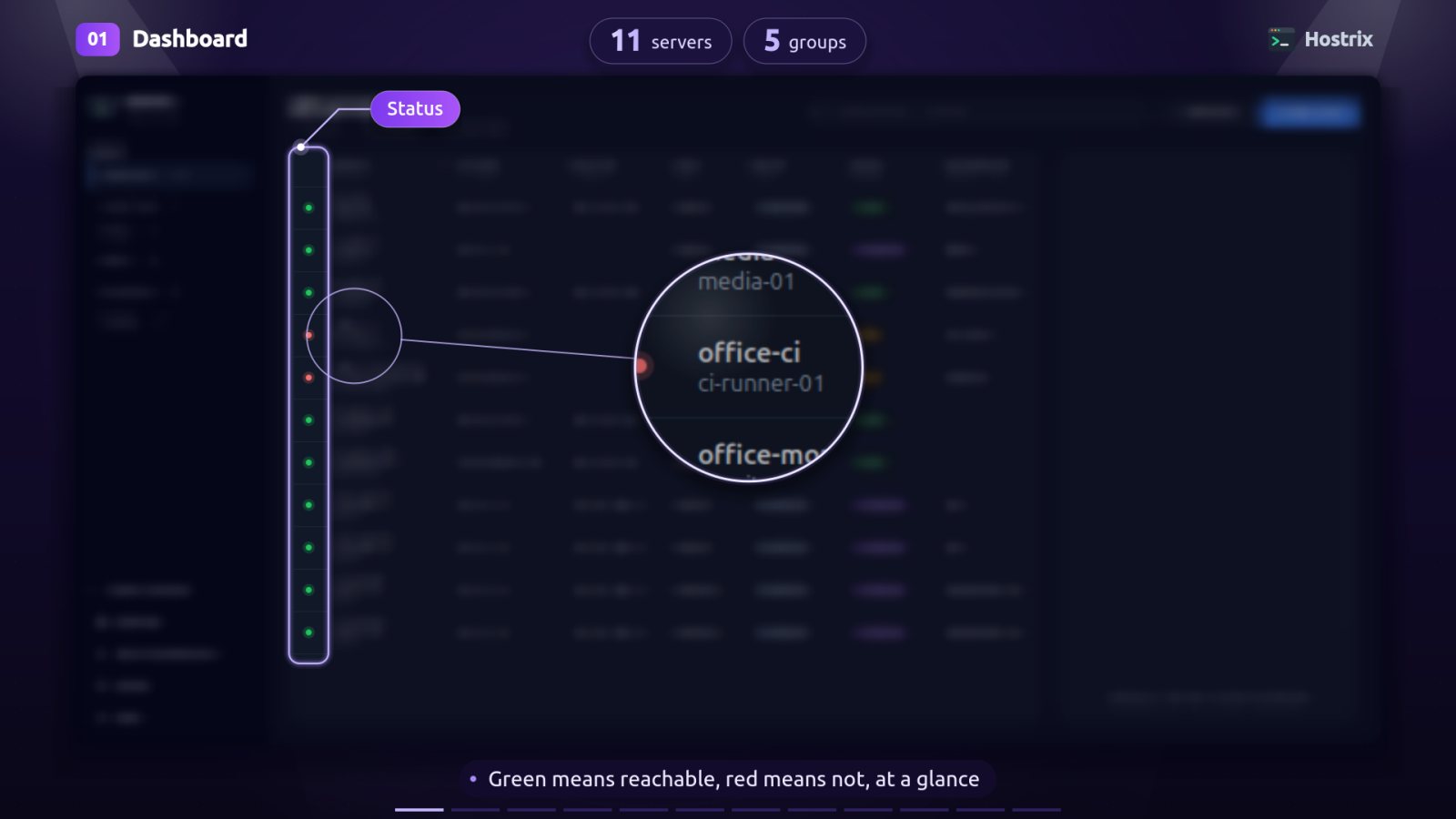
All your servers in one place
One list for your whole fleet, so you never dig through notes or spreadsheets again.
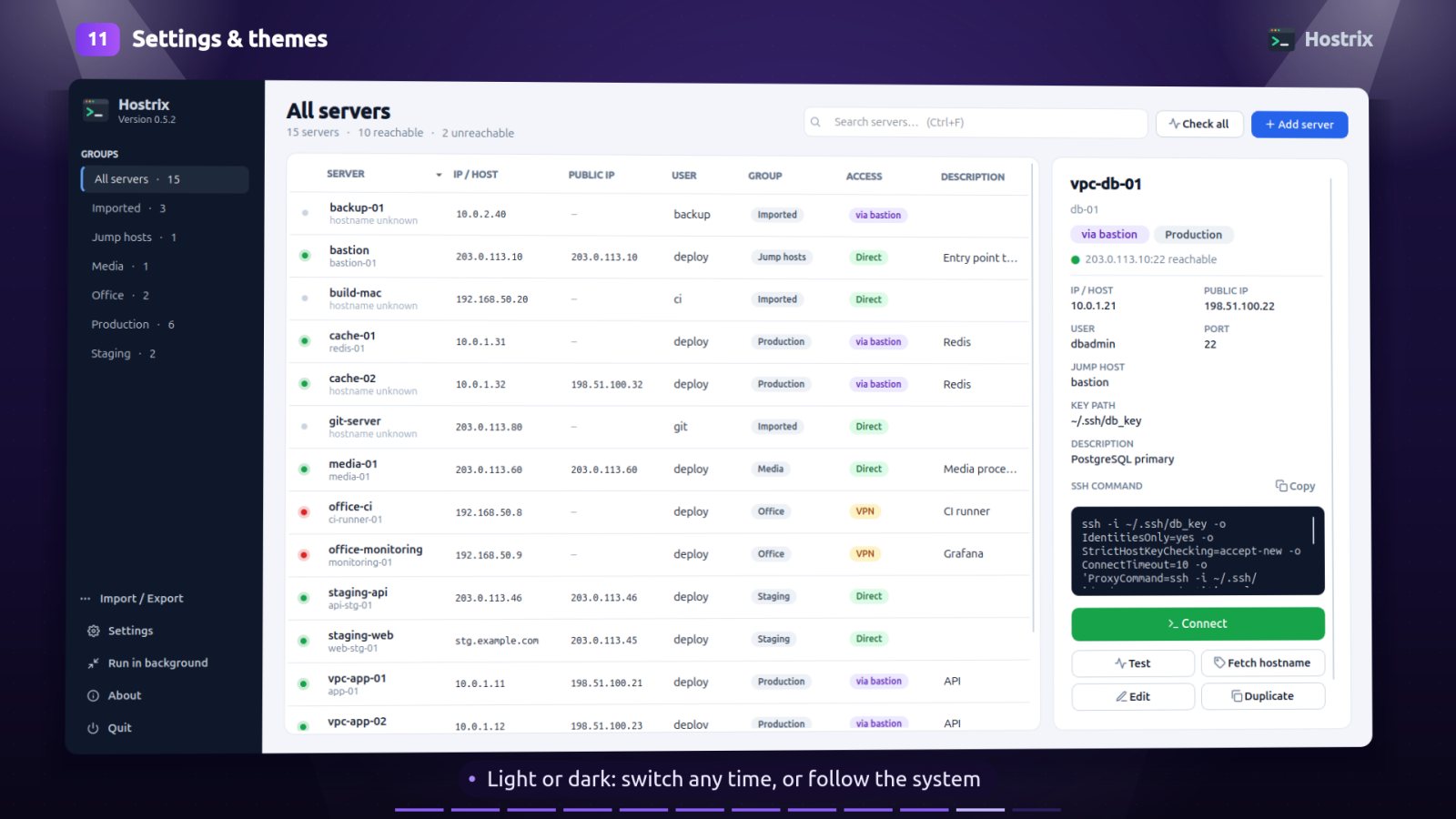
- Every detail at a glance: name, hostname, IP, public IP, user, group, access and description.
- Groups in the sidebar, with a count for each, to filter the list with one click.
- A details panel for the selected server: the exact ssh command with a Copy button, plus Test, Fetch hostname and Connect.
- Resizable panels; the layout is remembered.
Find any server instantly
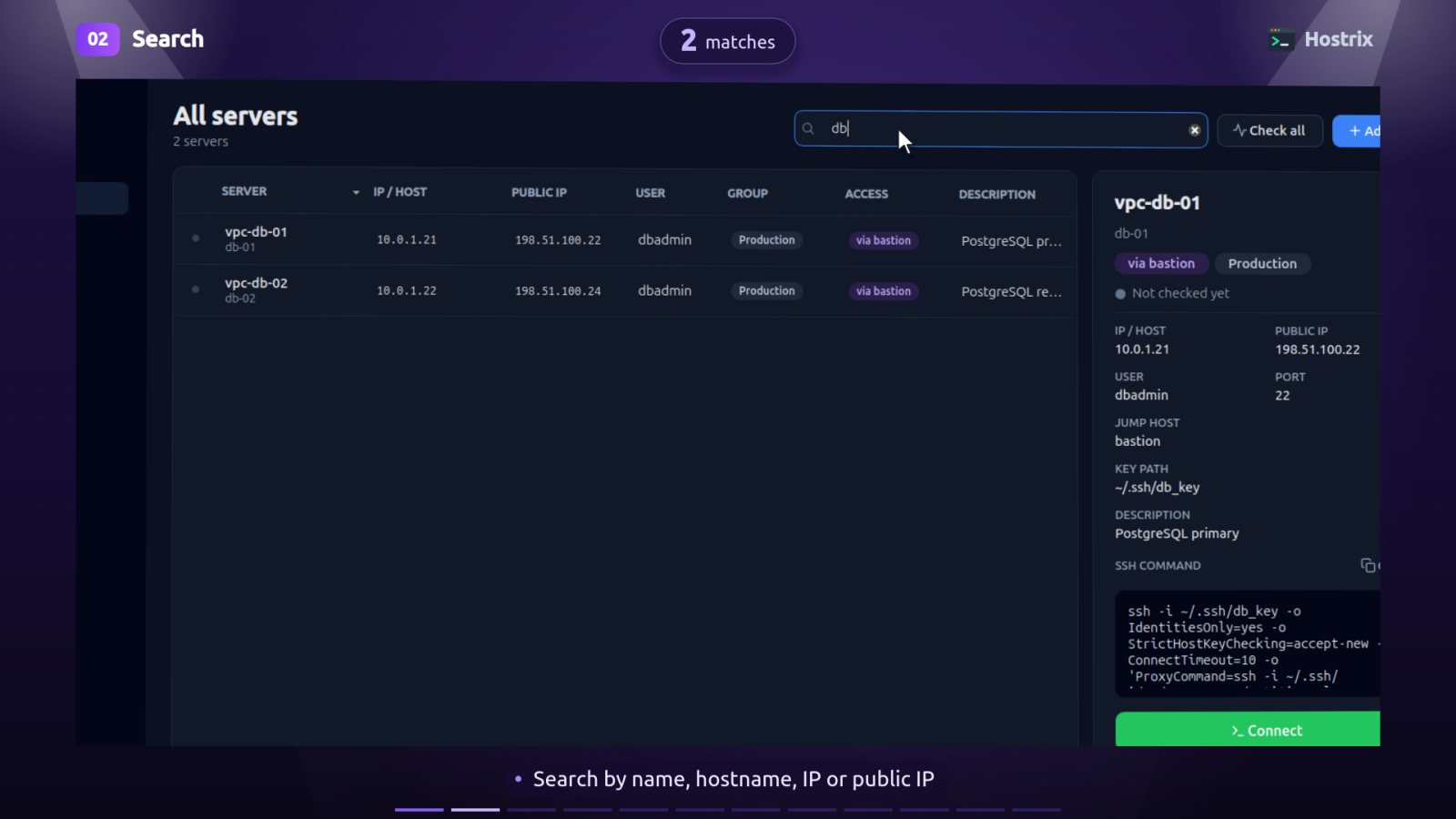
Start typing and the list filters as you go. Press Ctrl+F to jump to the search box.
- Searches every field: name, hostname, IP, public IP, user, group and description.
- Type part of an address, like
198.51.100.2, to find the server behind it.
Organised your way
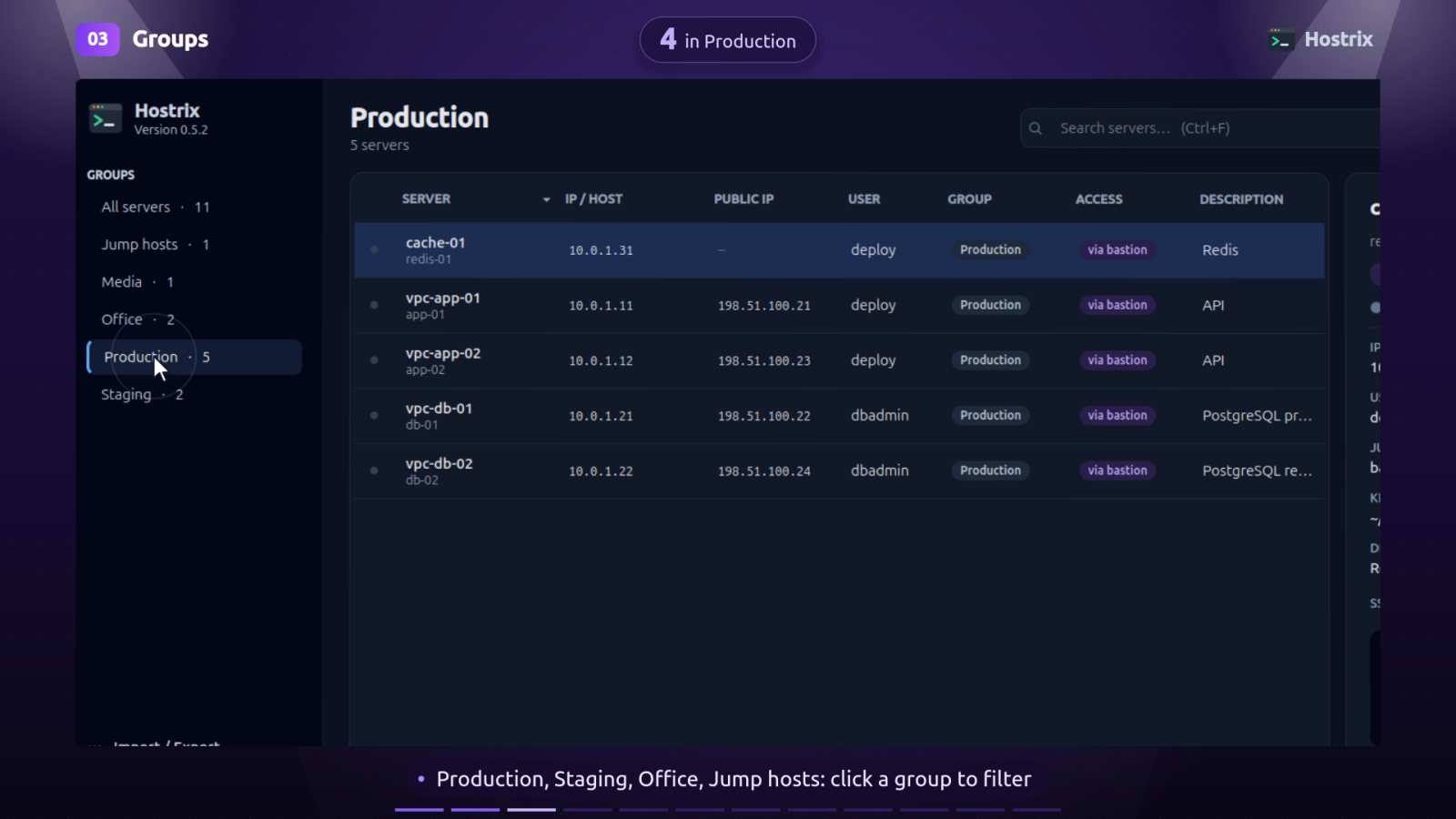
Production, Staging, Office, Jump hosts, or anything you like. Set a group on a server and it appears in the sidebar.
- Click a group to see only its servers.
- Group names come from your servers, so there's nothing to set up.
Know what's reachable
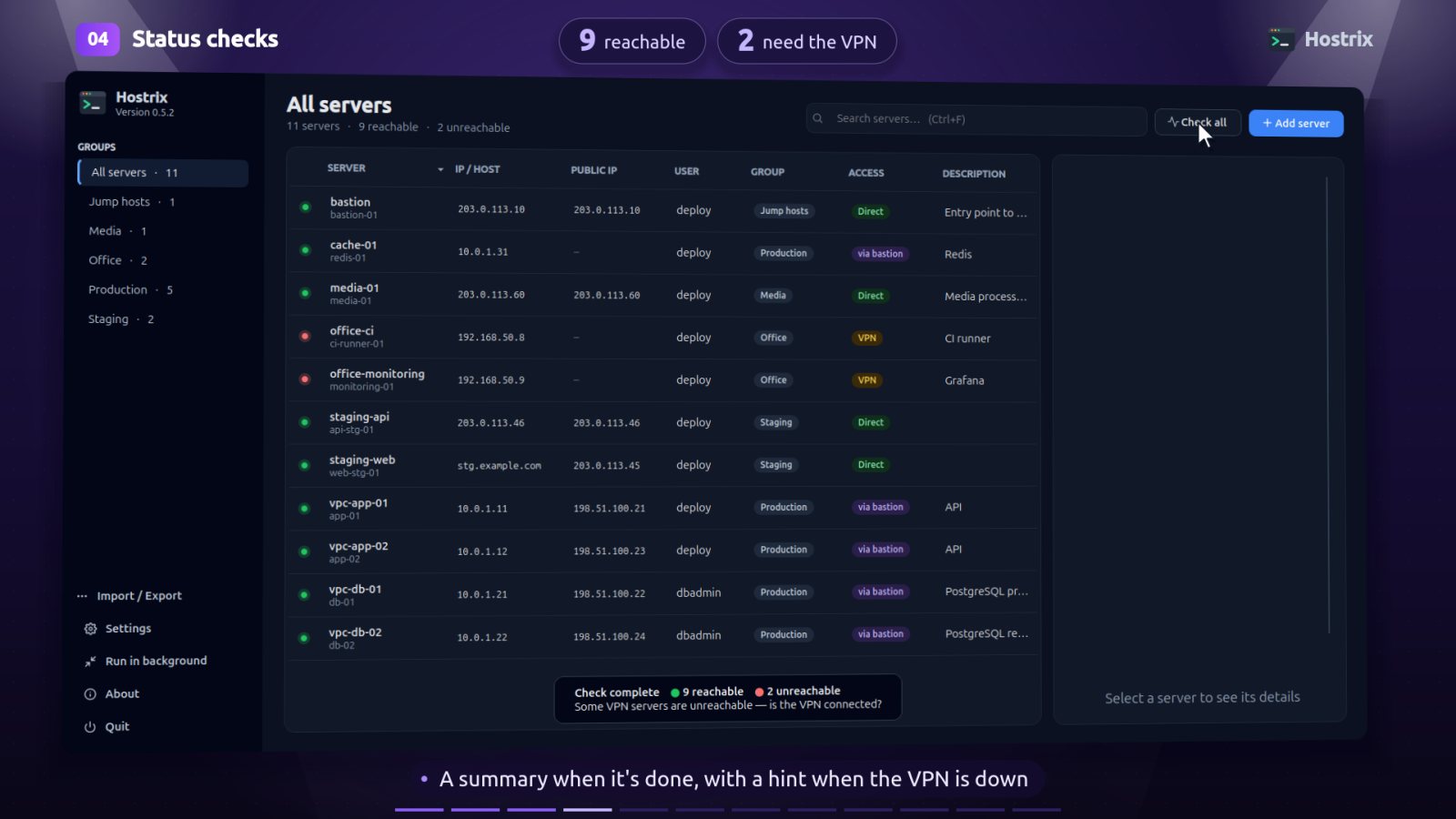
Before you connect, see which servers are up.
- Check all tests every server's SSH port in parallel, through its jump host's first hop, and shows a summary.
- VPN-only servers are tagged, with a "VPN connected?" hint when they're unreachable.
- Fetch hostname logs in and records each server's real hostname.
One click. You're in.
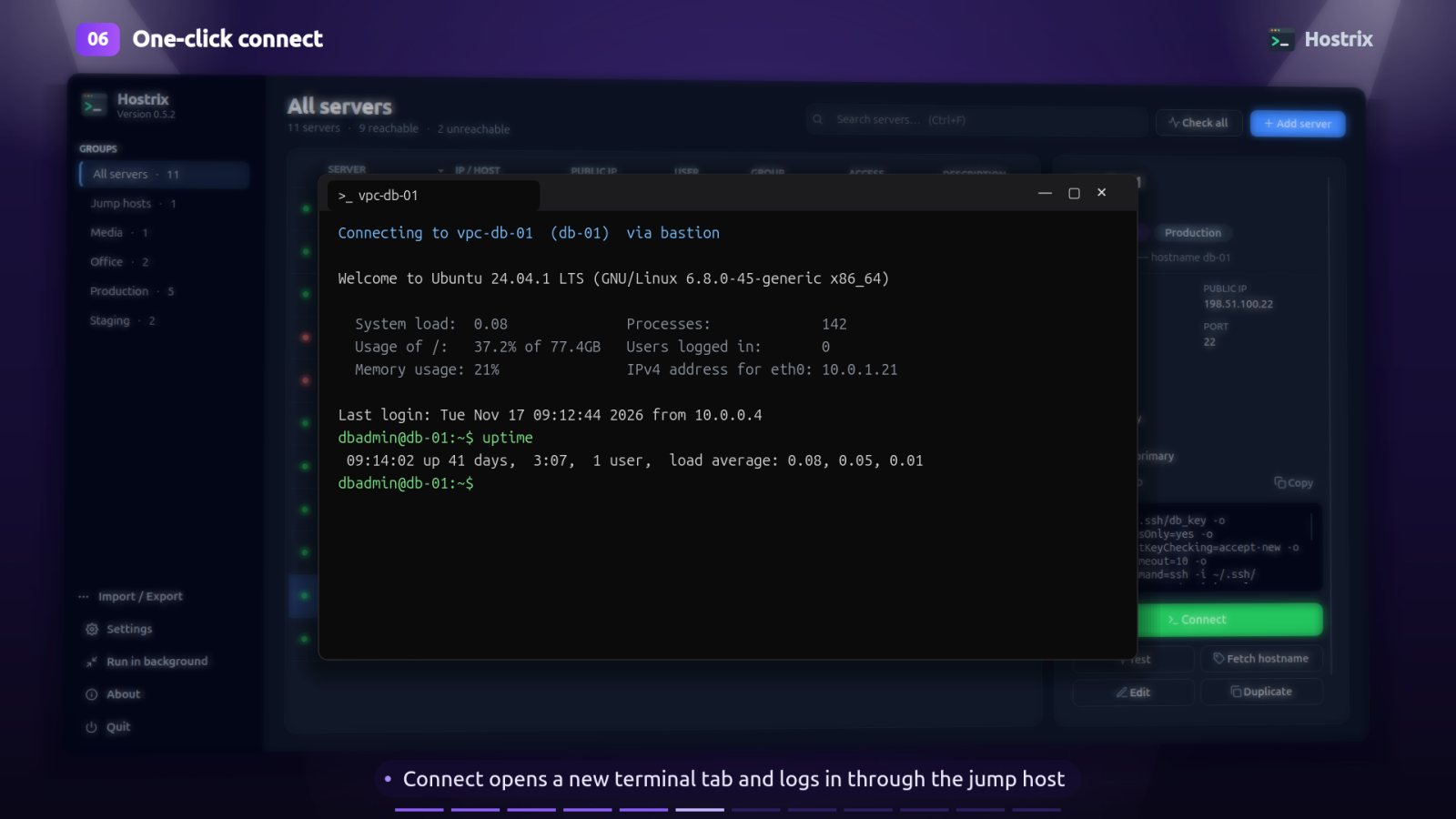
Connect (or double-click, or press Enter) opens a new terminal tab that's already logging in.
- Your own terminal: Windows Terminal, Terminal.app, or your Linux terminal (gnome-terminal, konsole, kitty, xterm and more). Pick any in Settings.
- Jump hosts built in. No more long
ProxyCommandlines. - Per-server user, key, port and extra
ssh -ooptions, with defaults for everything else.
Add a server in seconds
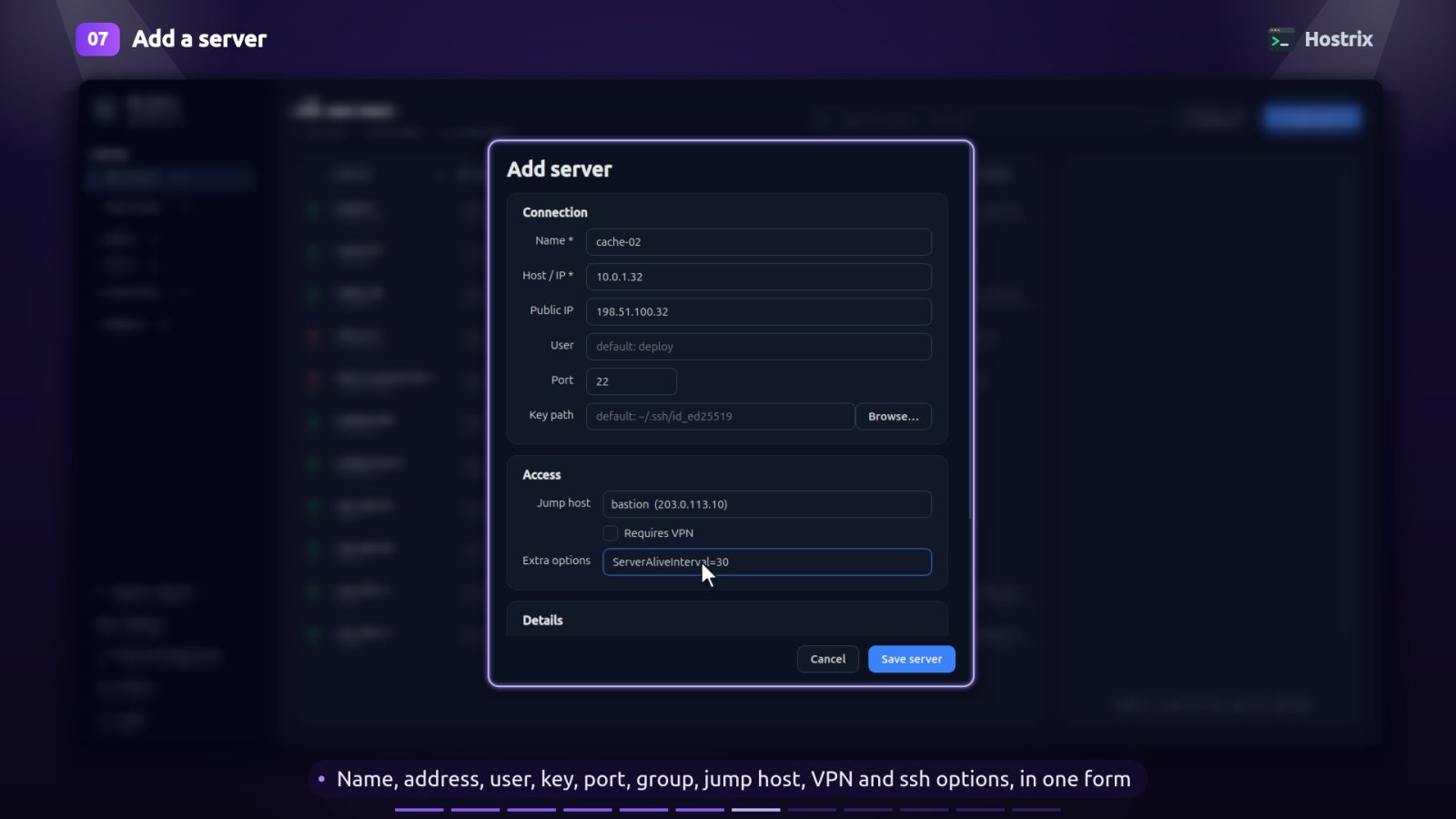
One form with everything a connection needs, and a right-click menu for everything else.
- Name, address, public IP, user, key, port, group, jump host, VPN flag, extra ssh options and a description.
- Right-click any server to connect, copy its ssh command or IP, test it, edit, duplicate or delete it.
Bring your ~/.ssh/config
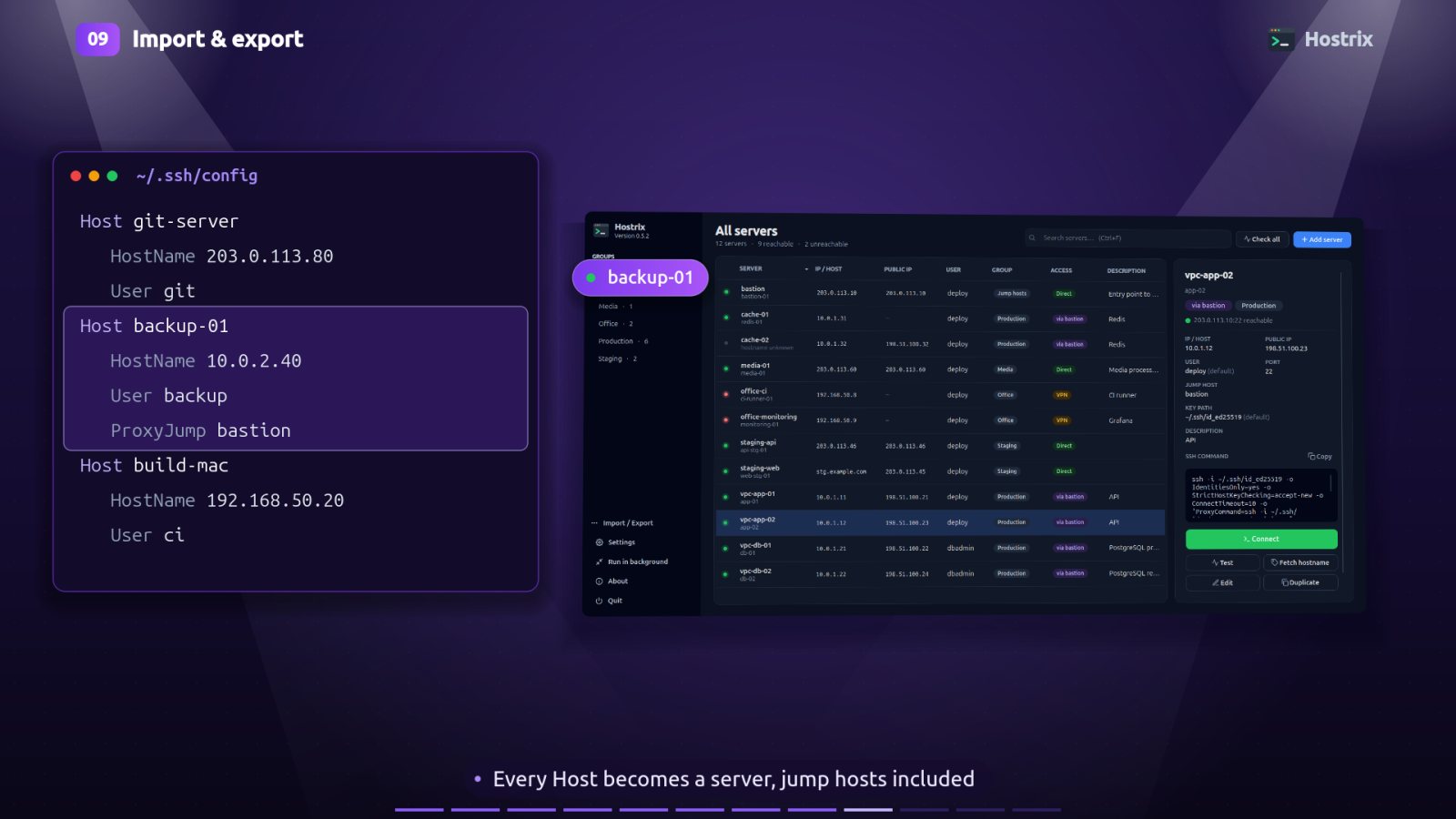
Already have an ssh config? Import it in one click: every Host becomes a server, jump hosts included.
- Hostrix writes an ssh_config back, so
ssh vpc-db-01,scp,rsyncand VS Code Remote-SSH use the same list. - Import or export the whole list as plain JSON to back it up or share it with your team.
# add this line at the top of ~/.ssh/config
Include ~/.config/hostrix/ssh_config
Always one command away
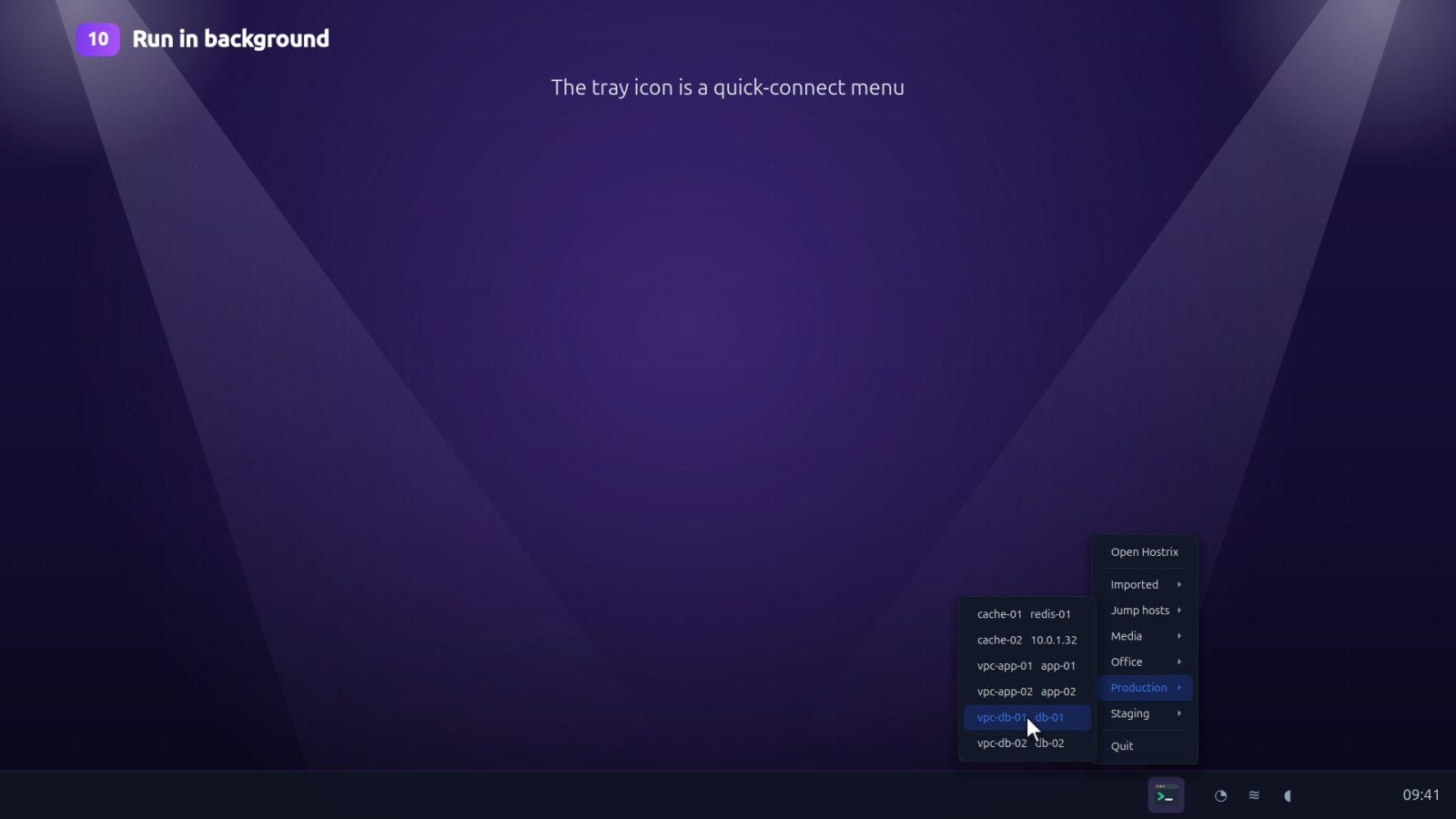
Keep Hostrix running in the background and reach your servers from anywhere.
- Run in background hides the window; run
hostrixagain to bring the same window back. - The tray icon is a quick-connect menu, grouped like the app.
- A CLI on Linux and macOS for list, connect, import and more.
$ hostrix list                # every server, as a table
$ hostrix connect vpc-db-01   # ssh in this terminal
$ hostrix command vpc-db-01   # print the full ssh command
$ hostrix import-ssh-config   # import ~/.ssh/config
Light, dark, your way
Make Hostrix fit your screen and your defaults.
- Light, dark or system theme.
- A font size the whole layout scales with.
- Default user and key, your terminal, and background mode.
Private by design
No telemetry, no accounts, no cloud. Your inventory is a plain JSON file and your keys never move.
Ready to try it?
Free for macOS, Windows and Linux. No account needed.